
Fabric changelog
Changelog
The latest Fabric releases and improvements.
Jump back to Today
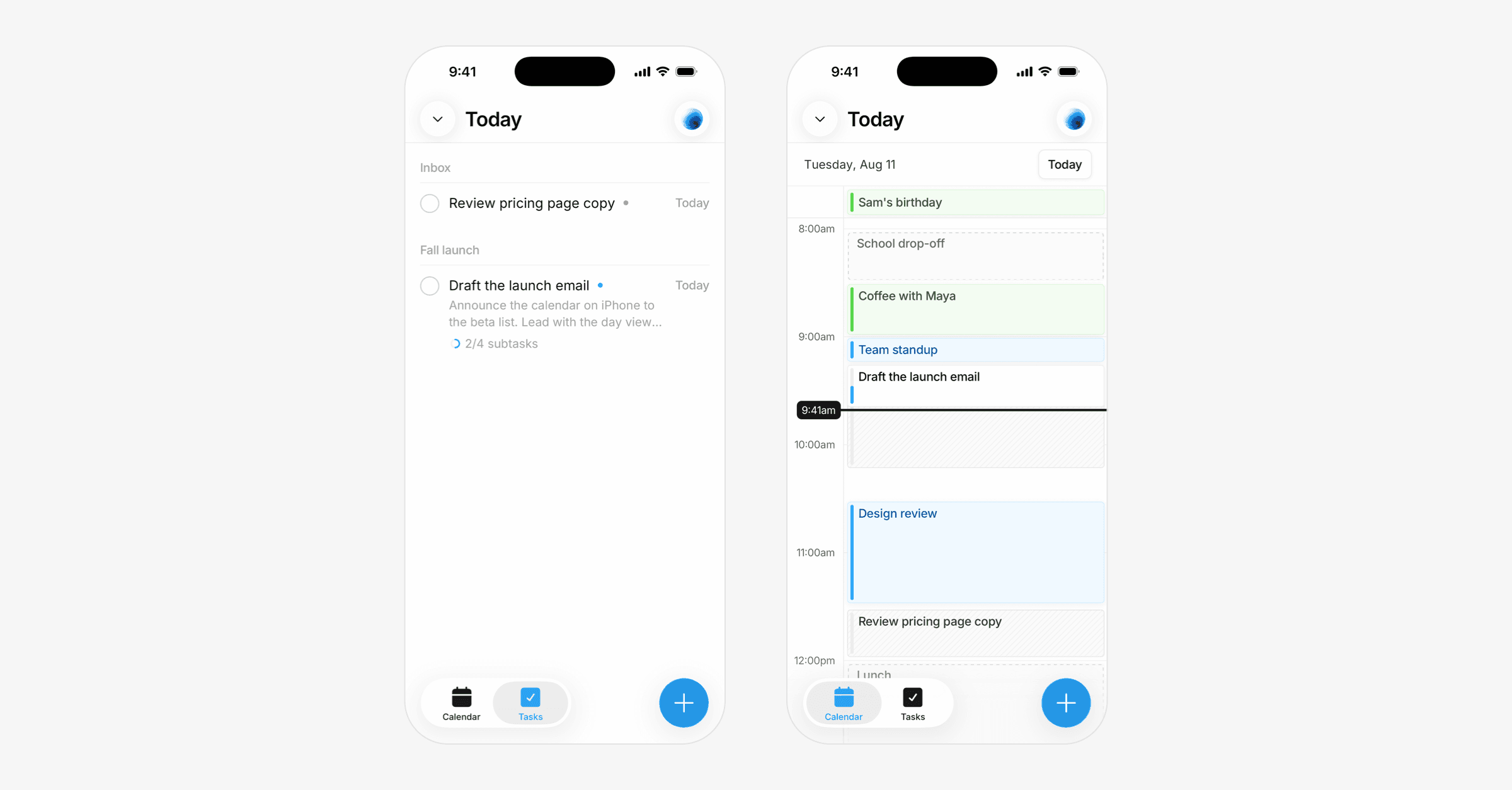
Clicking the Today button now brings both your calendar and your task list back to Today. The calendar jumps to the current time, and your task list switches to the Today section.
On the mobile app, tap the tab you’re already on. Tapping Tasks jumps your list to Today, and tapping Calendar jumps to the current day and time.
Create events in Fabric
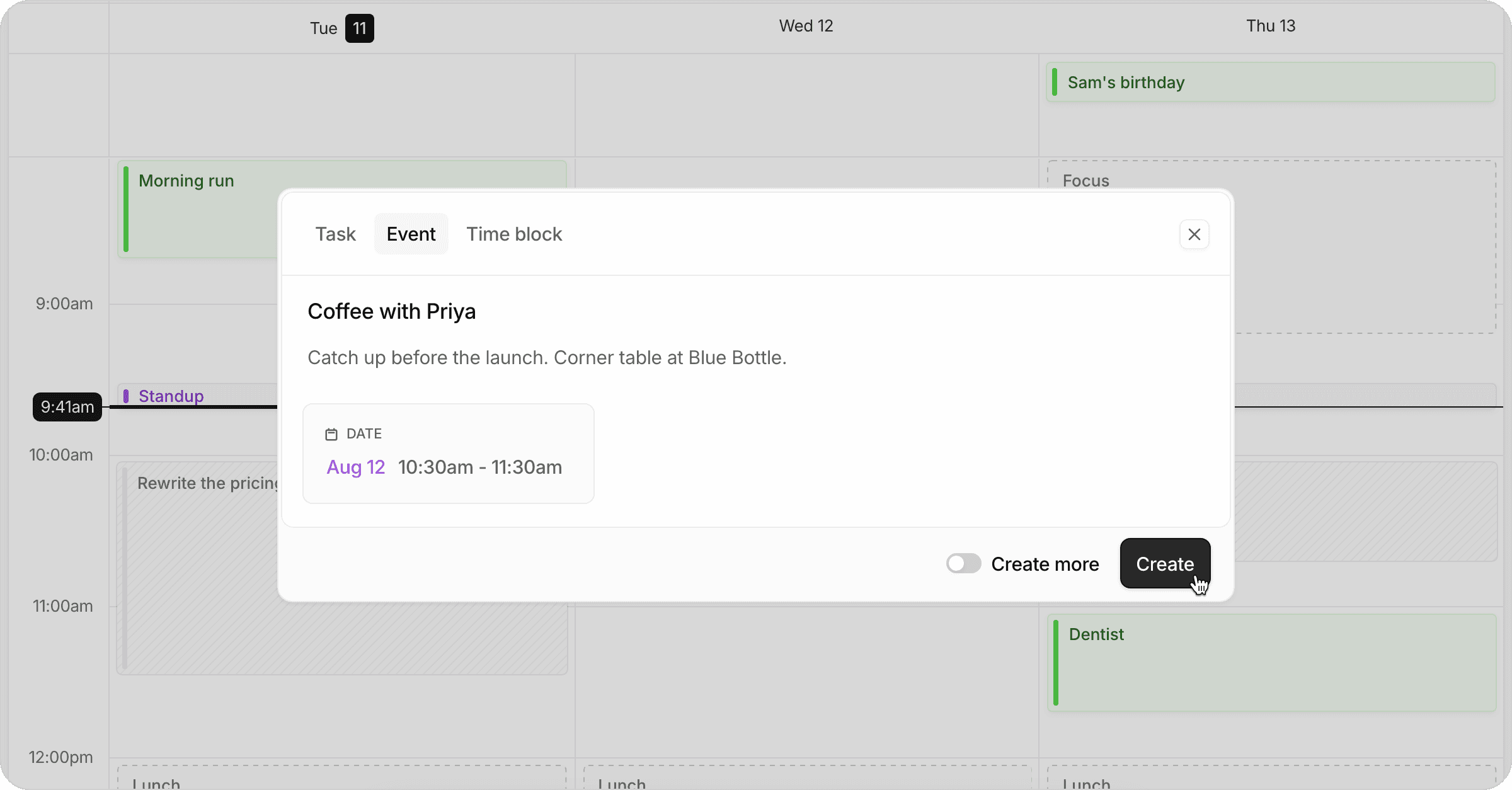
You can now create events directly in Fabric. Drag on your calendar or click +, then choose Event in the creation modal. Events sit on your calendar alongside your tasks and time blocks, and allow you to create meetings from Fabric.
Events sync to your Google and Apple Calendars, and automatically block out time as “Busy”. You can also choose to update the synced calendar default name, or unmask them to show their actual titles on your synced calendars.
Fabric MCP
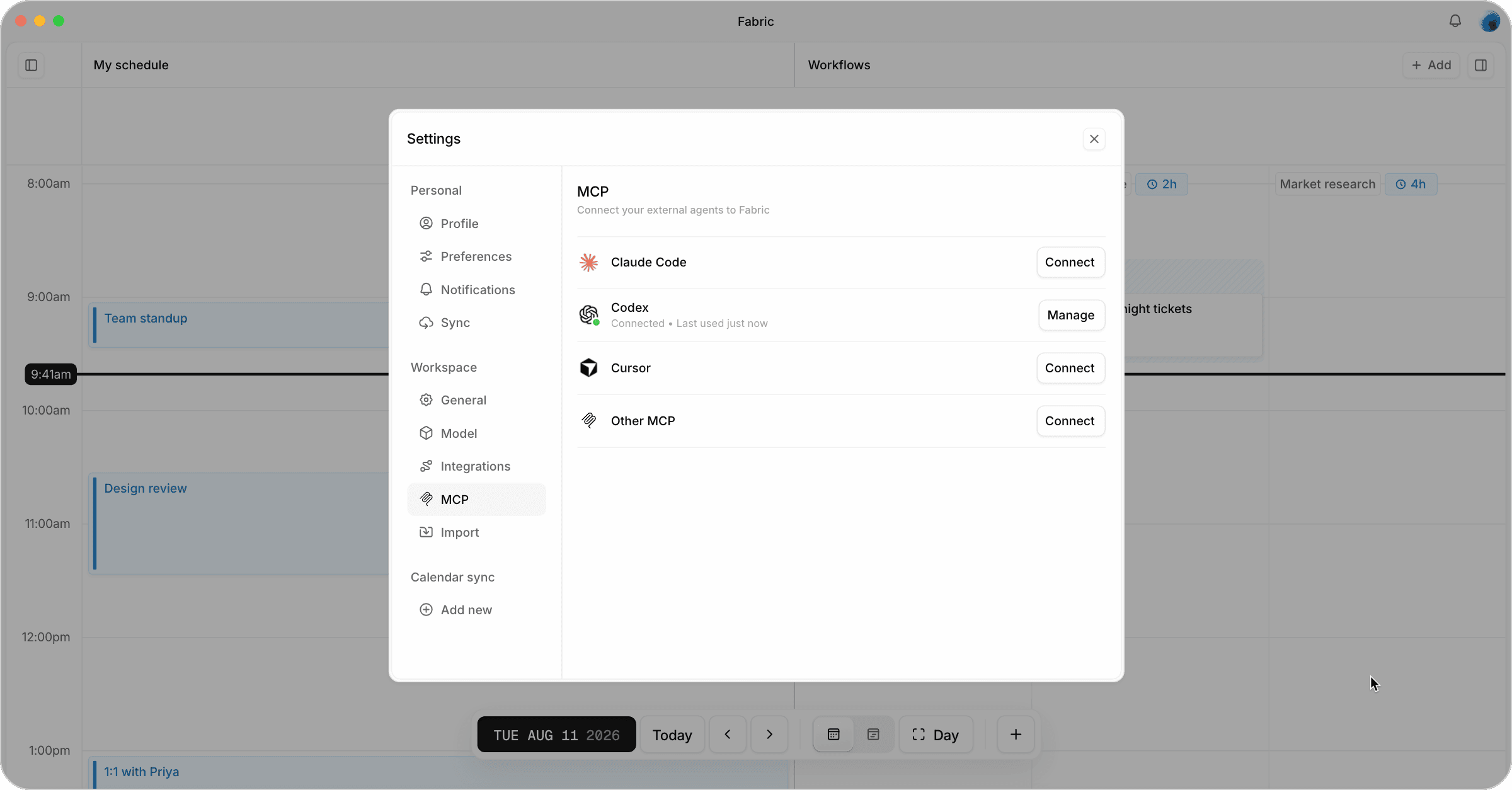
You can now connect Claude Code, Codex, Cursor or any other MCP client to Fabric. This enables your coding agent to see your calendar and tasks, and help plan your day right from your terminal or editor.
To connect your agent, open Settings → MCP and click Connect next to your agent of choice. Copy the prompt, paste it into a new session with your agent, and it will set Fabric up and check the connection.
Connected agents can create tasks, time blocks and events, and also schedule your tasks on the calendar. You can also track everything they do in the task’s activity updates.
Sync Google and Apple Calendar on mobile
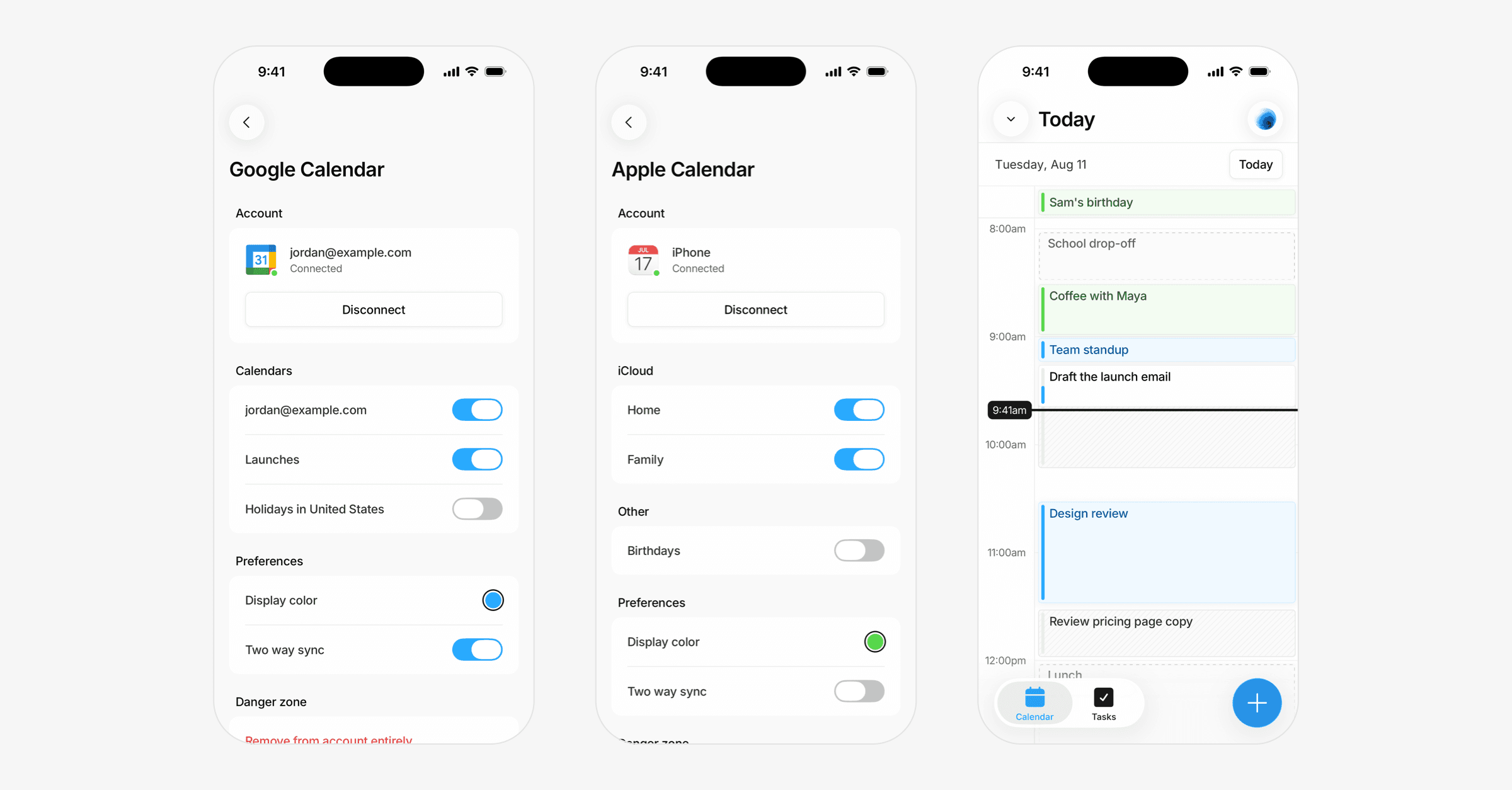
Sync your Google and Apple calendars to the Fabric mobile app. Navigate to Settings then click Add calendar to connect a Google or Apple account.
Control calendar visibility and two-way sync
If you’re using Sync, these calendars will sync across all of your desktop devices as well
Mobile calendar
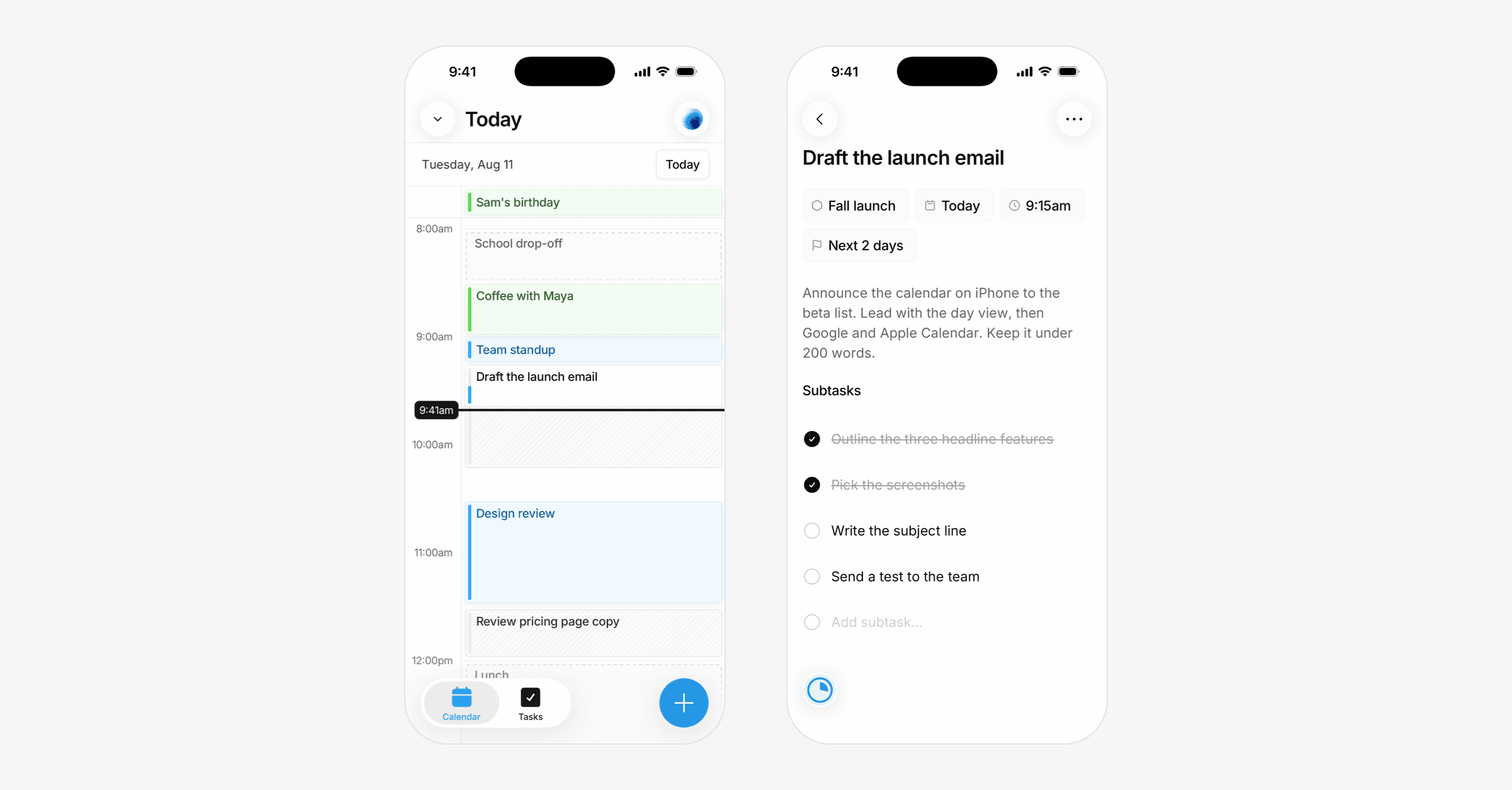
You can now view the calendar on the Fabric mobile app. Just click the Calendar tab at the bottom to switch to your calendar view.
Tasks and events sync across your mobile app and desktop devices
Long press to create new tasks or time blocks
Easily switch between calendar and task list views to track your day
Time blocks
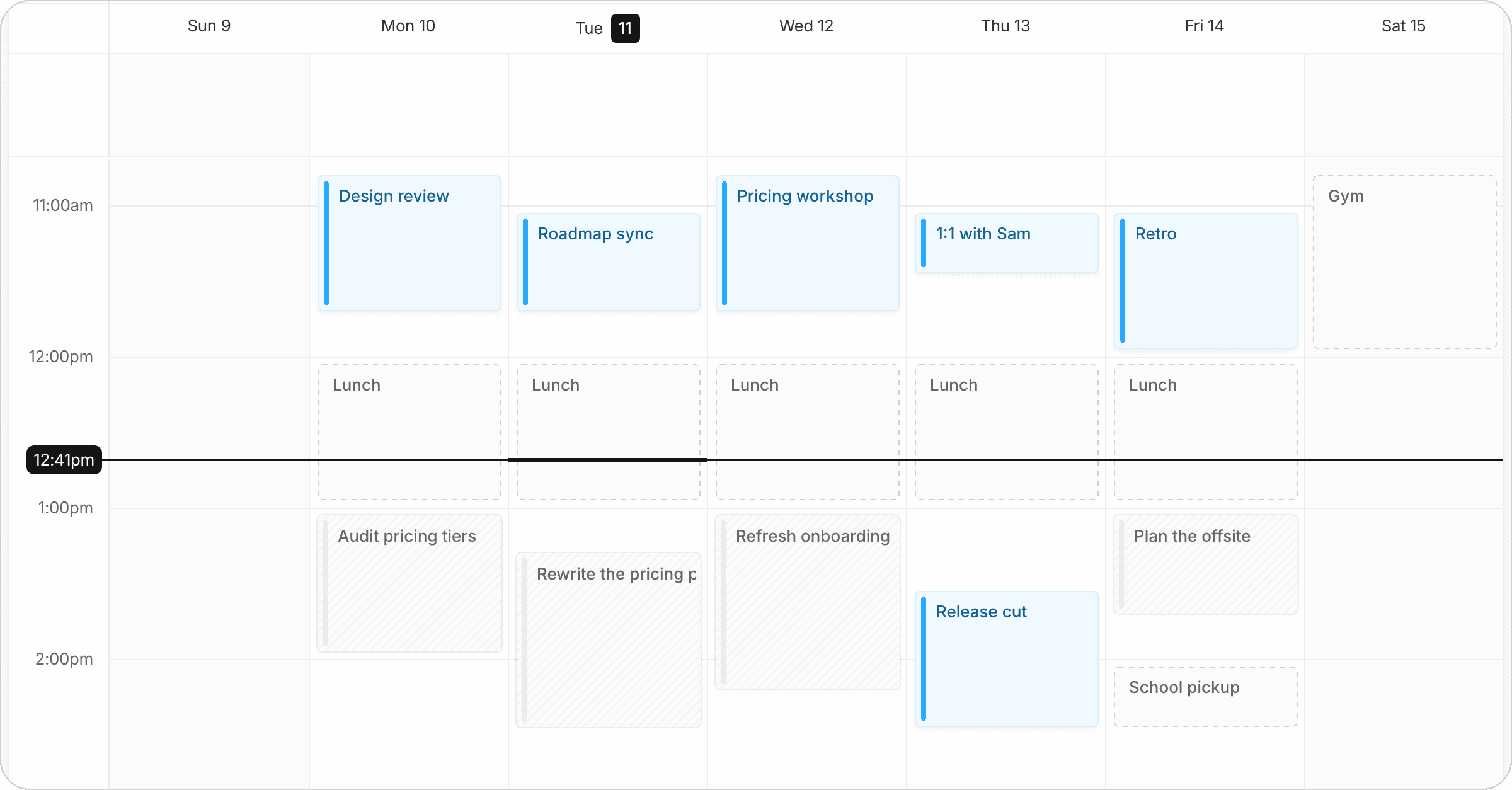
You can now create time blocks on your calendar, which reserve space on your calendar without adding tasks to your task list. Just create a task and choose the Time block option in the creation modal.
These time blocks sync to your Google and Apple Calendars just like tasks so that they block out time on your public calendar.
Your agents also have the ability to create time blocks, and understand the difference between a task (i.e. “Write the proposal”) and a time block (i.e. “Go to the gym”).
See your agents in 3-day and week view
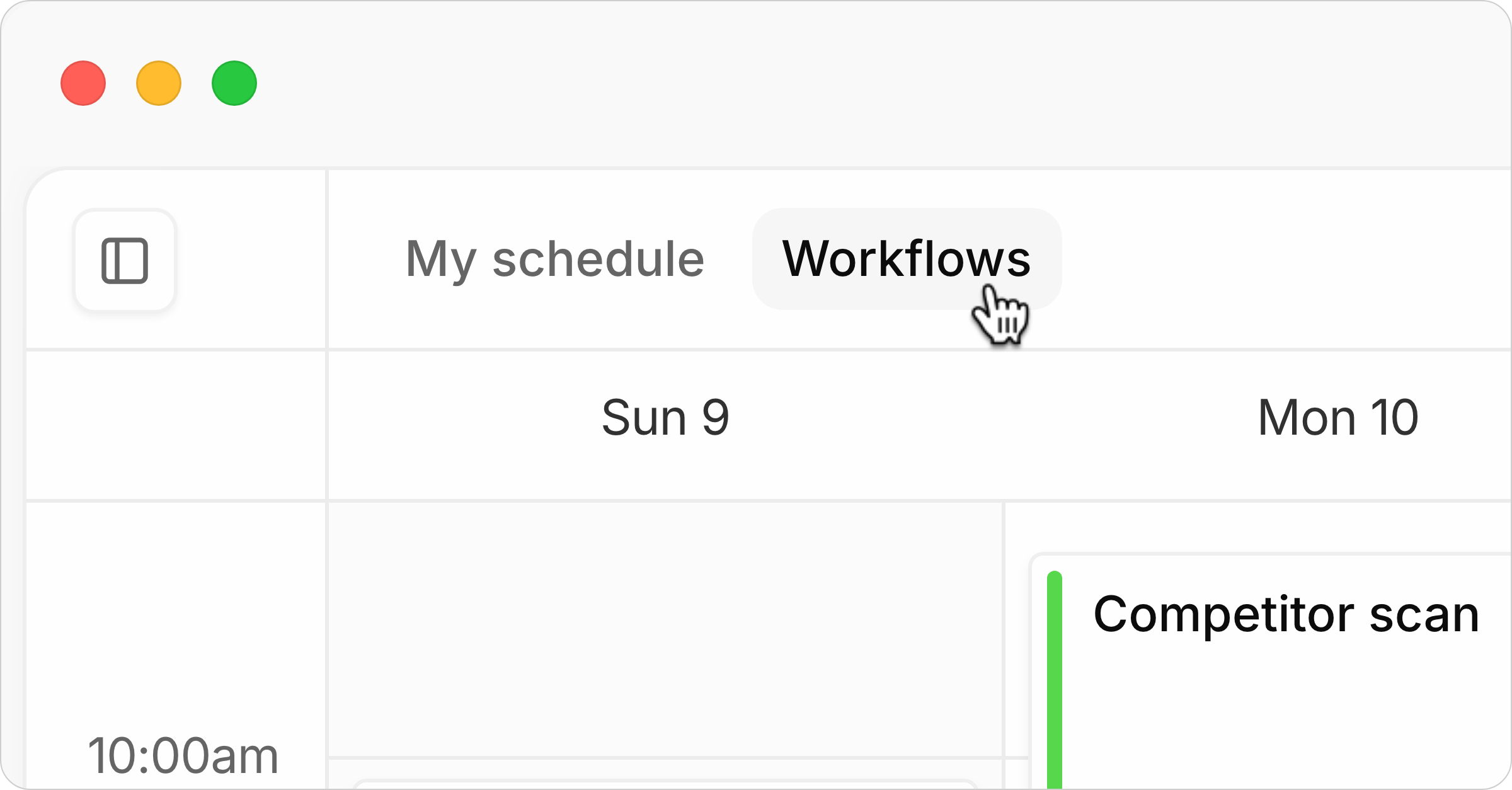
A new Workflows button at the top of the 3-day and week view enables you to switch to an agent view of your calendar. Quickly view all of the tasks your agents across multiple days.
Click My Schedule to switch back to an uncluttered view of your personal schedule with all agent tasks hidden.
Connect multiple Google Calendars
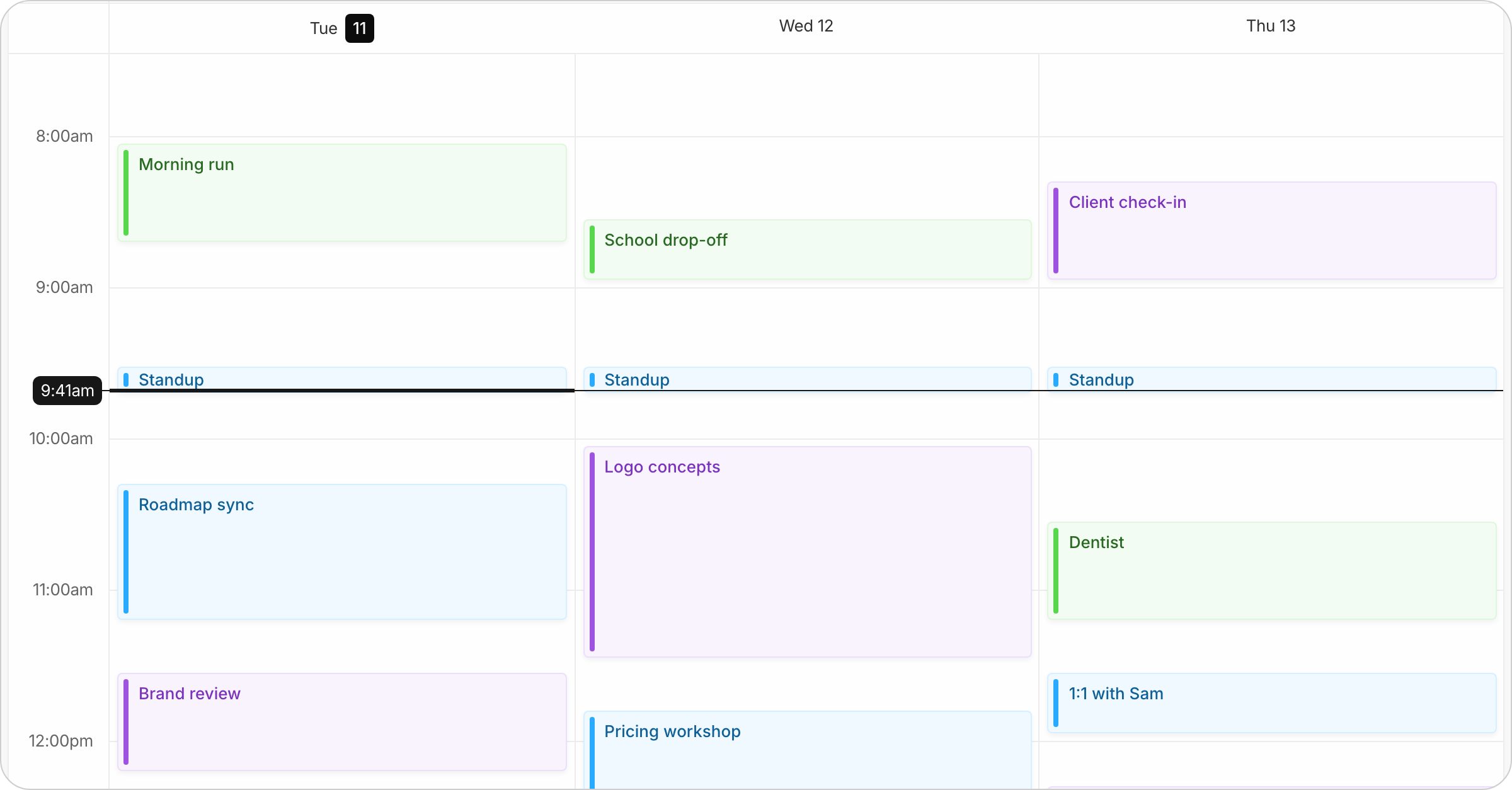
Most people don't keep their whole life in one Google account. Work, personal and side projects often live in separate calendars.
You can now connect more than one Google account. In Settings, press + next to Calendar sync and sign in with another account. Its events will appear on your Fabric calendar alongside the rest.