
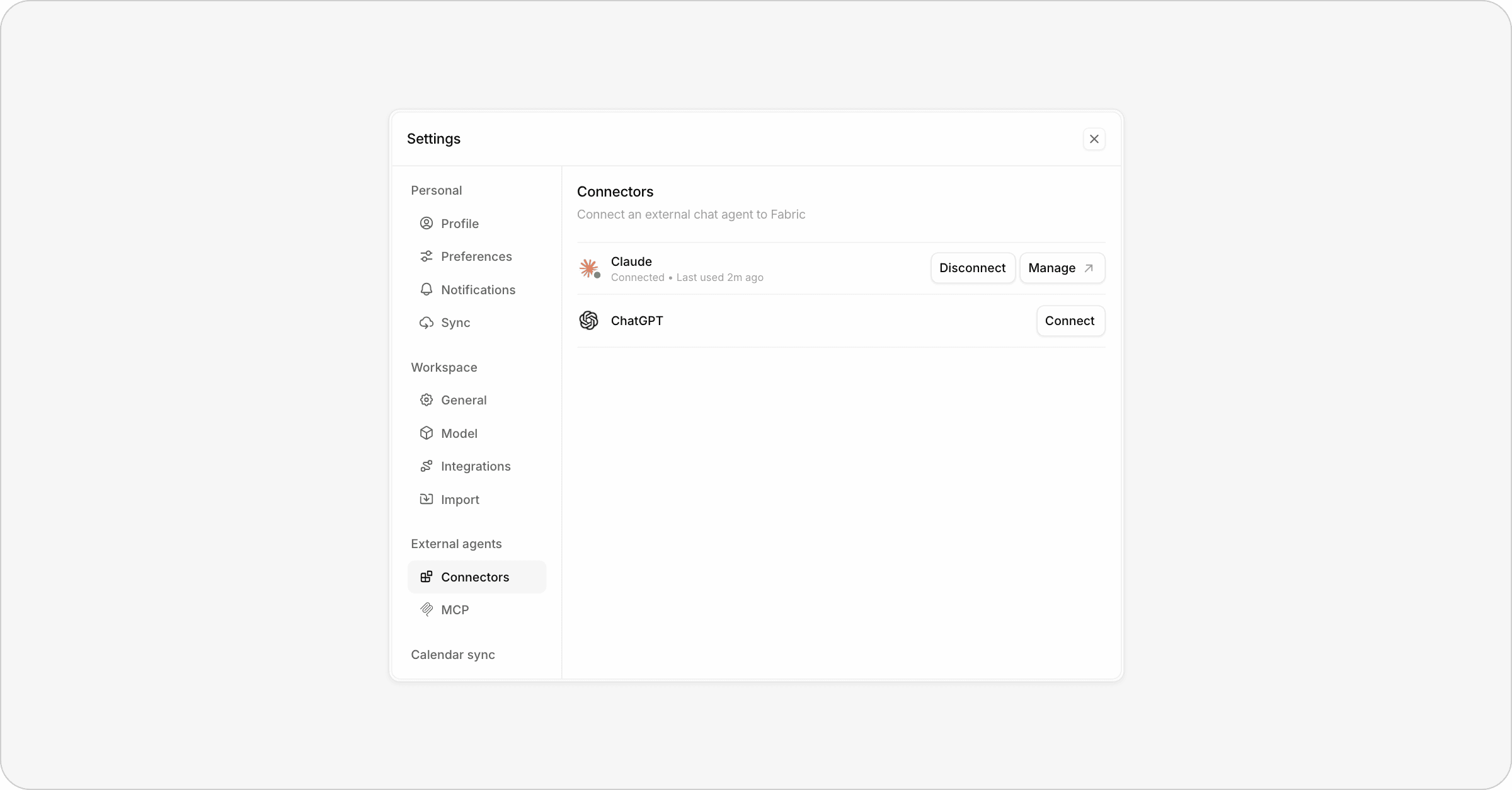
Connectors let the chat apps you already use, such as Claude and ChatGPT, read your schedule, manage your task list, and plan your day in Fabric. They can look up tasks, create and reschedule them, and block off time on your calendar, right from a chat.
Your data stays on your Mac: the chat app reaches the Fabric app on your computer through your Fabric account, and you can disconnect it at any time.
Connectors are for chat apps. To connect a coding agent that runs on your Mac, such as Claude Code, Codex or Cursor, use Settings → MCP instead. See Connect your agent to the Fabric MCP.
Before you start
Make sure the Fabric Desktop App is installed. Fabric answers the chat app from your Mac, so your data never has to leave it.
Fabric needs to be running. The chat app can only reach Fabric while it's open and your Mac is awake. Fabric runs in the menu bar, so it's usually already on.
You need a Fabric account. If you don't have one yet, you can create it while connecting. You don't need Sync.
How connecting works
Each chat app connects the same way. Fabric signs your Mac in, then you add Fabric in the chat app.
Open Settings → Connectors and click Connect next to Claude or ChatGPT.
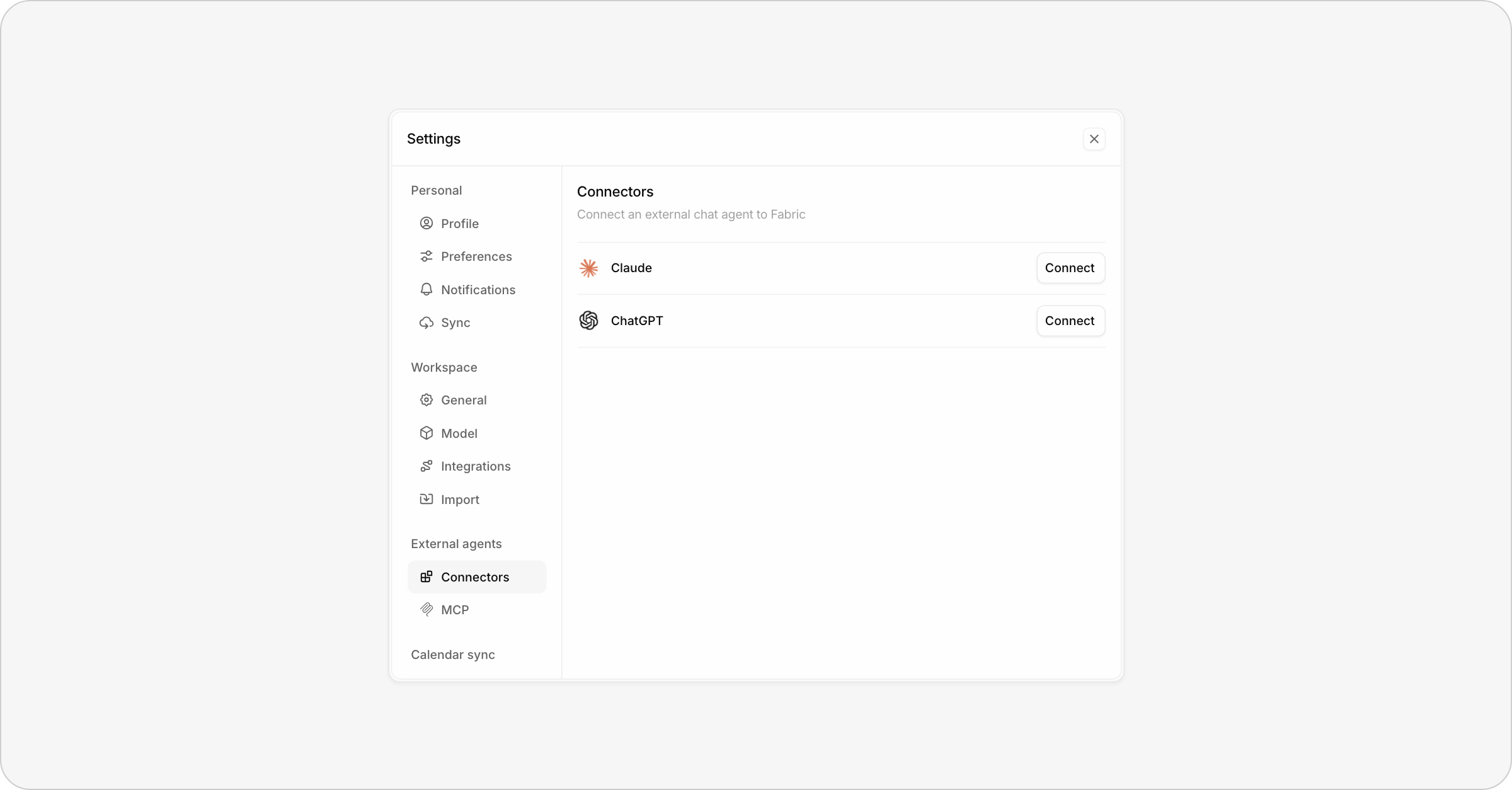
Your browser opens. Sign in to your Fabric account, or create one, and click Connect.
Back in Fabric, the row shows Awaiting setup and a blue dot. Your Mac is ready; the chat app hasn't connected yet.
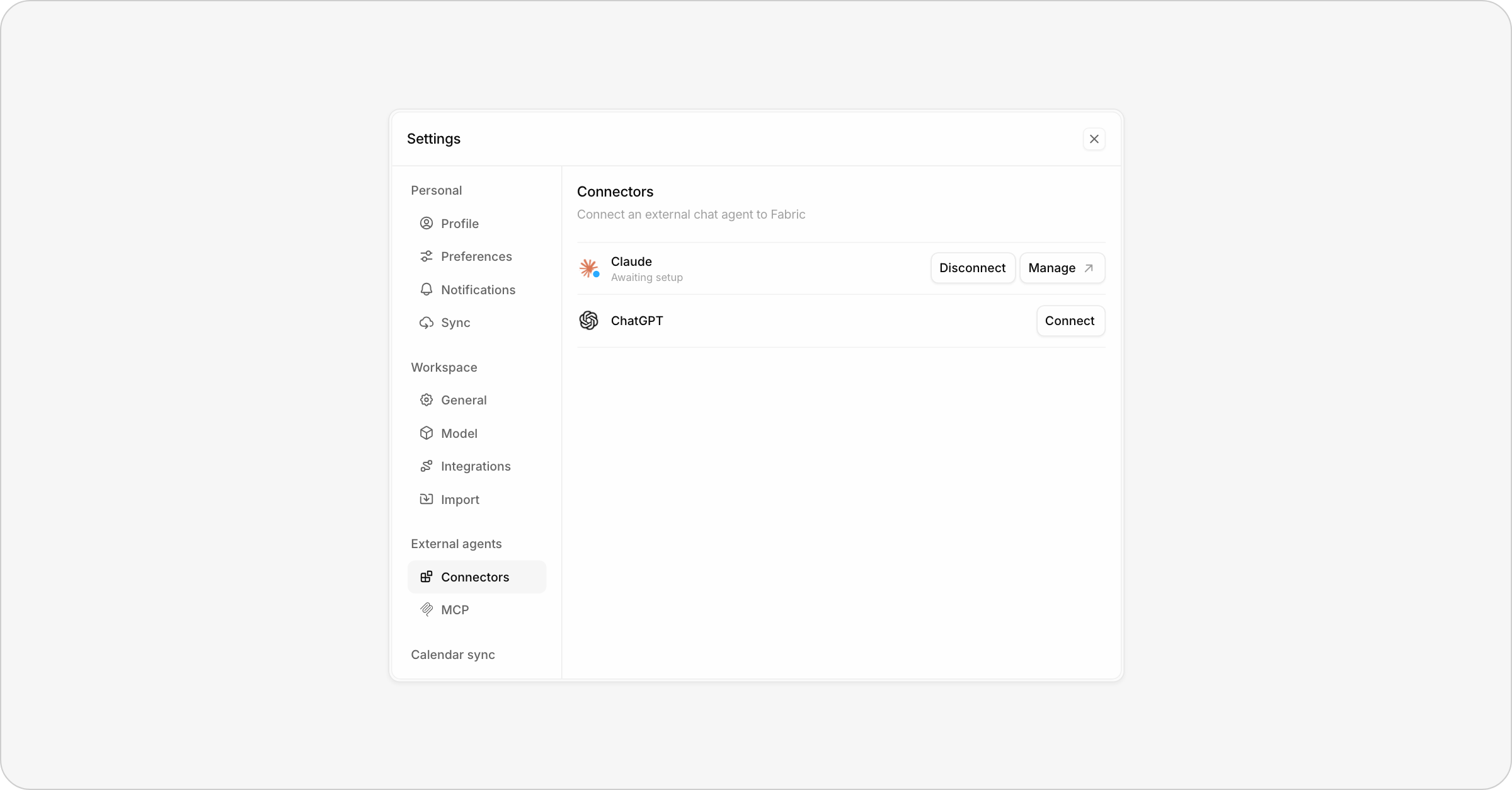
Click Manage ↗. This opens the chat app's Connector or Plugin settings.
Add Fabric in your chat app’s Connector or Plugin settings and sign in with the same Fabric account. Review the permissions and approve.
Start a new chat. Chat apps load a connector's tools when a chat starts, so a chat that was already open won't see Fabric.
Ask your agent to view or update your calendar or task list.
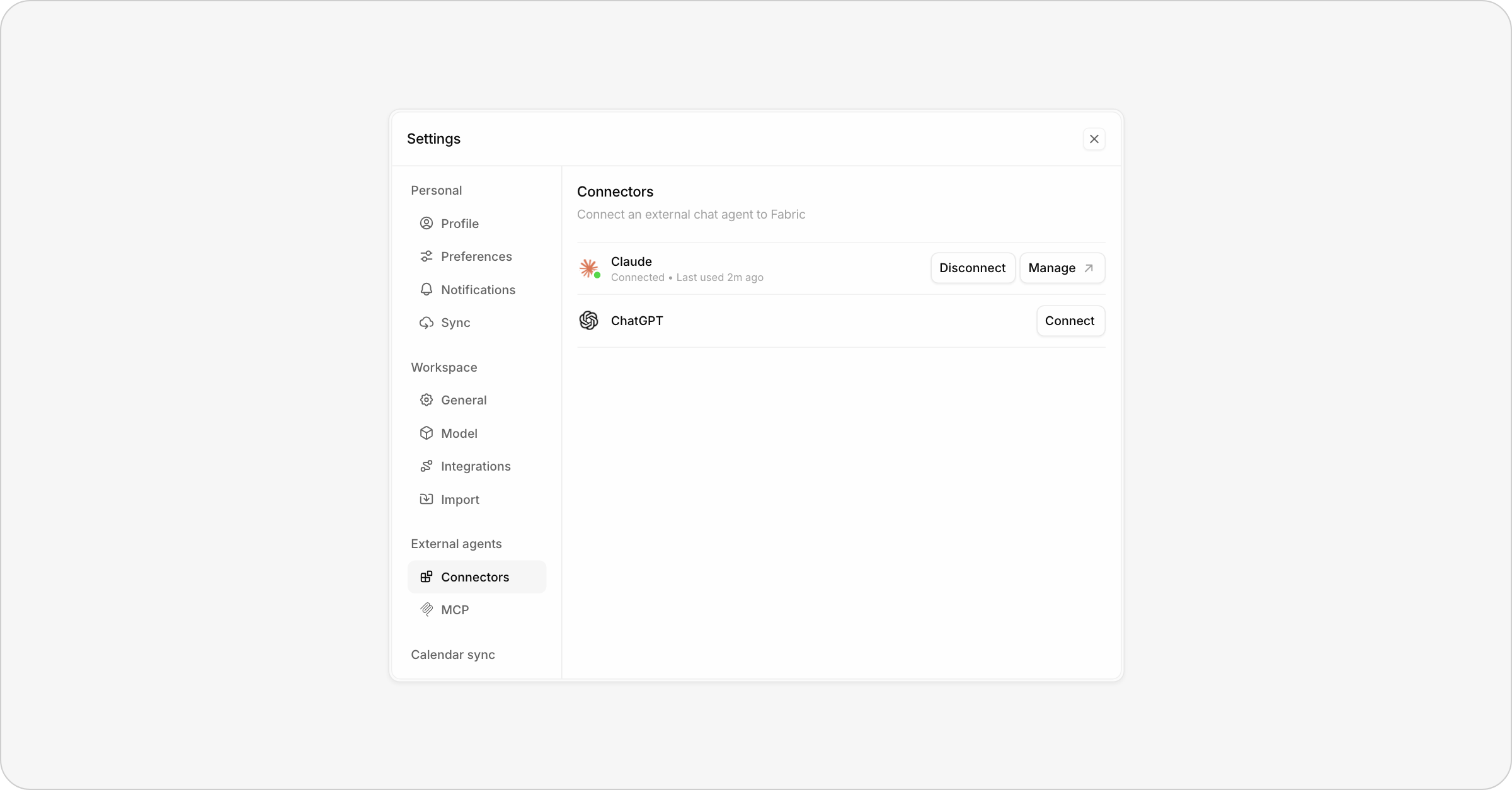
When the chat app uses Fabric for the first time, the row turns Connected with a green dot, and shows when it was last used.
Claude
Settings → Connectors → Claude → Connect, then sign in in the browser.
Click Manage ↗ to open Claude's connector settings.
Add Fabric and approve.
Start a new chat in Claude.
Fabric works in Claude on the web, desktop and phone, as long as Fabric is running on your Mac.
ChatGPT
Settings → Connectors → ChatGPT → Connect, then sign in in the browser.
Click Manage ↗ to open ChatGPT's connector settings.
Add Fabric and approve.
Start a new chat in ChatGPT.
What your agent can do
A connected chat app can do the same things with your schedule as an agent connected through MCP. When you add Fabric, the chat app asks you to approve two permissions:
View your tasks, schedule and projects
Your context: the current time, your time zone and your name.
Your schedule: what's planned for any window of time, including each occurrence of a repeating task and its status.
How a past period went: what was planned compared with what got worked on.
Tasks: search across all your workflows and My Schedule, and open any task to see its details.
Projects: your list of projects.
Create, edit and complete tasks, time blocks and events on your schedule
Create tasks: undated, due on a day, at a set time, all-day, split across several blocks, or repeating, with a priority and project.
Reschedule tasks: change when a task happens, its priority, or which project it's in.
Work with calendar blocks: add blocks to a task, or move, resize and remove upcoming blocks.
Block off personal time: lunch, the gym, a school pickup.
Add events: appointments, dinners, flights.
Anything a chat app creates is labelled with its name, so you can always tell what came from Claude or ChatGPT and what you added yourself.
Manage or disconnect a chat app
Click Disconnect to stop the chat app from using Fabric.
To remove Fabric from your chat app, use Manage ↗ before you disconnect, or open the chat app's settings yourself. Then disconnect the Connector or Plugin from inside your chat app’s settings.
Disconnecting your last chat app signs this Mac out of connectors. Click Connect to sign in again.
Troubleshooting
The chat app says Fabric isn't running on your Mac: Open Fabric on your Mac and make sure your Mac is awake, then try again.
The chat app says Fabric isn't set up on a Mac yet: Open Fabric, go to Settings → Connectors and click Connect. Sign in with the same Fabric account you used in the chat app.
Connected, but the chat app can't use Fabric: Start a new chat in your chat app.
The row stays on Awaiting setup: Add Fabric in the chat app with Manage ↗, then use it in a new chat. Make sure you are signed in to the same Fabric account in both places.
Took too long to connect: Click Connect again and finish signing in in the browser.
If all else fails: Quit Fabric, open it again, and click Connect to try again.